
Automate Shipping Profiles pricing is based on the number of products in your Shopify product catalog. Every plan includes full access to all features and the same level of human support, so nothing is locked behind a higher-tier plan.
How It Works
Billing plans are based on the number of products in your Shopify product catalog. If your product catalog exceeds the limit of your Growth or Professional plan, automation won't be available until you upgrade to a plan that supports your current catalog size. The Unlimited plan has no product limit, so automation will never be suspended due to catalog size. You can upgrade at any time to avoid disrupting automation.
You can also downgrade your plan at any time, provided your current product count is within the limit of the plan you want to switch to. For example, if you're on the Professional plan, which supports up to 7,500 products, but your store has fewer than 2,500 products, you can downgrade to the Growth plan.
Setup Mode
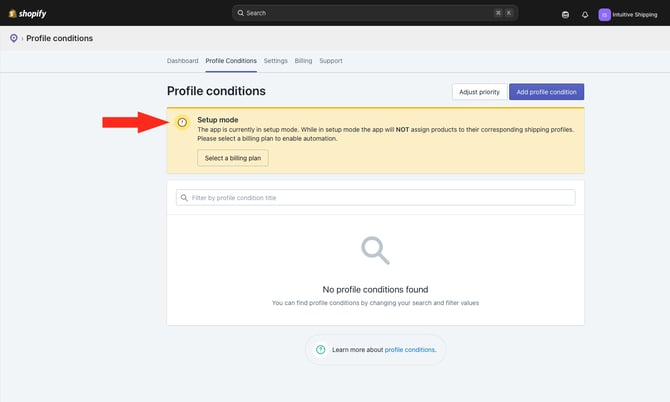
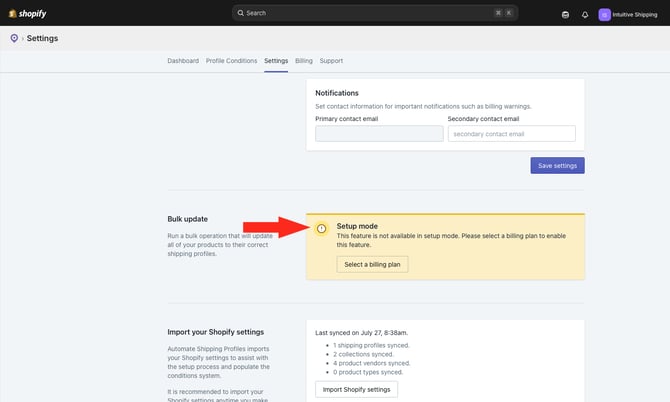
You can configure your Profile Conditions while in Setup mode. To enable automation, including Bulk updates, you'll need to activate your account by selecting a billing plan.
While in Setup mode, a yellow banner is displayed at the top of the app and beside the Bulk update feature on the Settings page, indicating that automation is unavailable until your account is activated.
Select A Billing Plan
Once you've set up your Profile Conditions, activate your account to enable automation and start automatically sorting products into your Shopify Shipping Profiles.
1. Click Billing on the main menu.
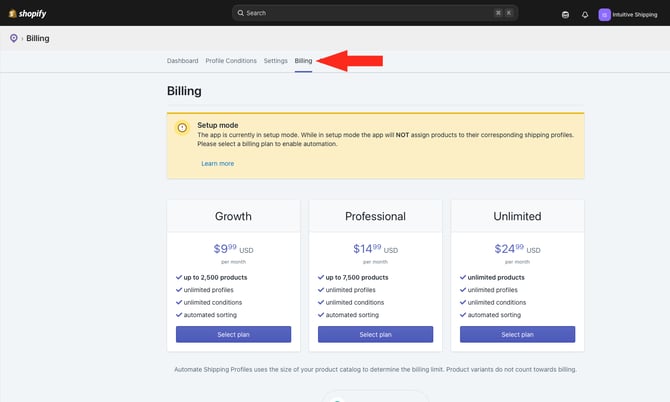
2. Review the plan features and select the plan that suits your business needs. You can change your plan at any time if you need to.
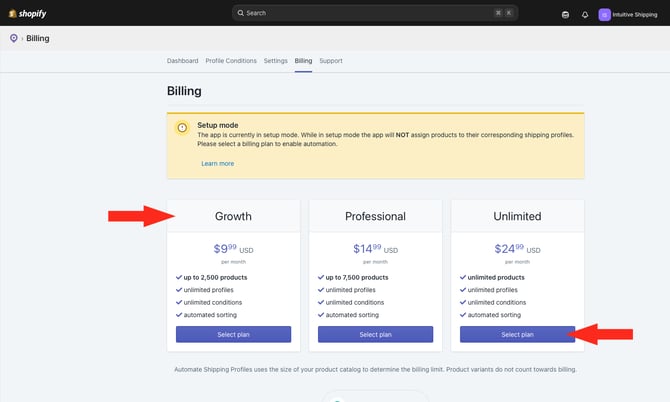
After selecting a plan, you will be required to approve the subscription through your Shopify account.
3. If you've finished configuring your Profile Conditions, go to the Settings page and run a Bulk update to sort all products into the appropriate Shopify shipping profiles. Once the bulk update is complete, Automate Shipping Profiles will automatically sort any new products added to your catalog.
Change Billing Plans
If your current billing plan no longer meets your needs, switch to a different plan at any time.
1. Click Billing on the main menu.
2. View your Current Plan details.
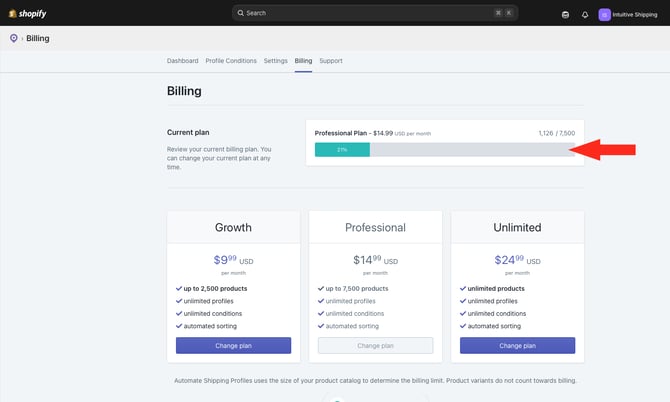
3. Select a higher or lower-tier plan, depending on your current product catalog size.
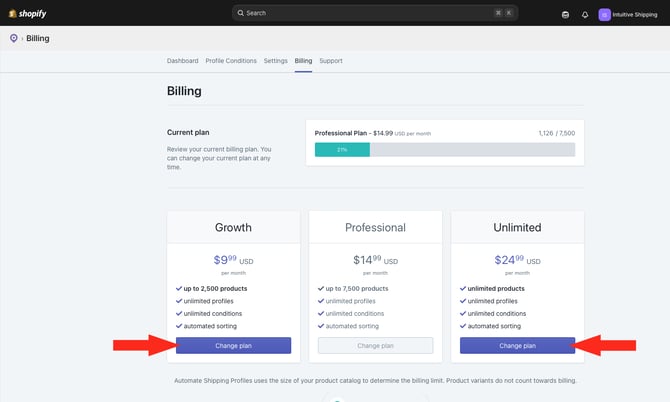
 If your current plan's usage exceeds the limit of a lower-tier plan, you won't be able to downgrade your plan.
 If your product catalog exceeds your current plan limit, automation will be suspended and a notification email will be sent to both the Primary and Secondary Contact email addresses.
Once you upgraded to a plan that supports your current product count, automation will automatically resume.