---
title: Update Settings
description: General Settings
---
[Skip to content](https://knowledge-asp.intuitiveshipping.com/update-settings#main-content)
[](https://knowledge-asp.intuitiveshipping.com?hsLang=en)
- [FAQ](https://knowledge-asp.intuitiveshipping.com/frequently-asked-questions)
- [Intuitive Shipping](https://intuitiveshipping.com)
Open main navigation
Close main navigation
- [FAQ](https://knowledge-asp.intuitiveshipping.com/frequently-asked-questions)
- [Intuitive Shipping](https://intuitiveshipping.com)
- [Contact us](https://knowledge-asp.intuitiveshipping.com/contact)
[Contact us](https://knowledge-asp.intuitiveshipping.com/contact?hsLang=en)
How can we help?
- There are no suggestions because the search field is empty.
1. [Automate Shipping Profiles Help Center](https://knowledge-asp.intuitiveshipping.com/?hsLang=en)
2. [Get Started](https://knowledge-asp.intuitiveshipping.com/get-started?hsLang=en)
# Update Settings
## Configure Automate Shipping Profile's general settings, such as automation status, default shipping profile and additional email contact.
**Contents:**
- [How It Works](https://knowledge-asp.intuitiveshipping.com/update-settings#how-it-works)
- [General Settings](https://knowledge-asp.intuitiveshipping.com/update-settings#general-settings)
- [Bulk Update and Import Shopify Settings](https://knowledge-asp.intuitiveshipping.com/update-settings#bulk-update-import-shopify-settings)
Automate Shipping Profiles lets you choose a default Shopify shipping profile for products that don't match any Profile Conditions. You can also add a secondary email address to receive important system notifications and enable or disable automation as needed.
### How It Works
Automate Shipping Profiles can automatically sort new products into the appropriate shipping profiles as they're added to your Shopify catalog. If you're troubleshooting or making changes to your product catalog, you can temporarily disable automation using the **Automation status** setting.

Disabling automation does not stop billing.
Profile Conditions determine which profile each product is assigned to. Any products that don't match a Profile Condition will automatically be assigned to the **Default shipping profile** selected in Settings.

Learn more about [Profile Conditions](https://knowledge-asp.intuitiveshipping.com/profile-conditions?hsLang=en).
Important system **notifications**, including billing information, are sent to the primary contact email address synced from your Shopify settings. You can also add a secondary contact email address to receive these notifications.
### General Settings
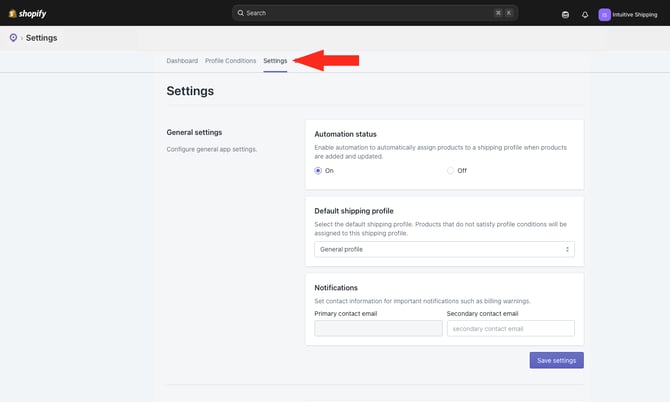
This guide will show you how to configure general settings in Automate Shipping Profiles, including **Automation status**, **Default shipping profile** and **Notifications** settings.
**1.** Click **Settings** on the main menu.
#### Automation Status
Setting Automation status to 'Off' **disables all automation** in Automate Shipping Profiles, regardless of your Profile Condition status settings. **It does not stop billing.**

Learn more about [Profile Conditions settings](https://knowledge-asp.intuitiveshipping.com/profile-conditions?hsLang=en).
**1.** Choose whether to **enable or disable automation**.
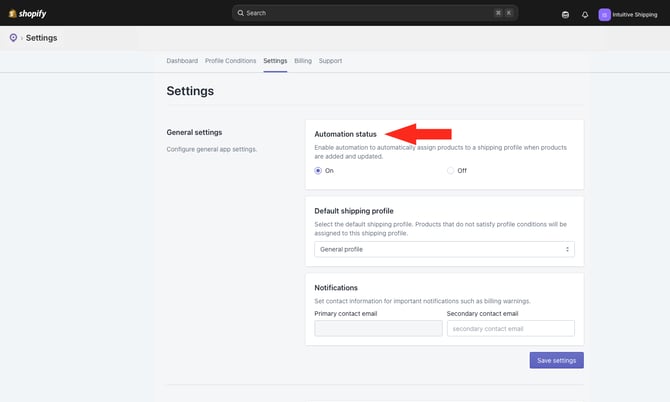
You have two settings to choose from:
- **On** - Automation is enabled. Products will be sorted into shipping profiles using Profile Conditions when you run a bulk update. This is the default setting.
- **Off** - Automation is disabled. Product Conditions will be ignored and products will not be sorted into profiles.
#### Default Shipping Profile
All of your Shopify shipping profiles, including your general profile and any custom profiles you've created, can be imported and synced with Automate Shipping Profiles.
Learn how to [add shipping profiles to Shopify](https://knowledge-asp.intuitiveshipping.com/how-to-add-custom-shopify-shipping-profiles?hsLang=en) and import them to Automate Shipping Profiles.
Products in your Shopify catalog are sorted into shipping profiles based on whether they match your Profile Conditions. If a product doesn't match any Profile Conditions, it will automatically be assigned to the default shipping profile you select here.
**1.** Select a **default shipping profile**.
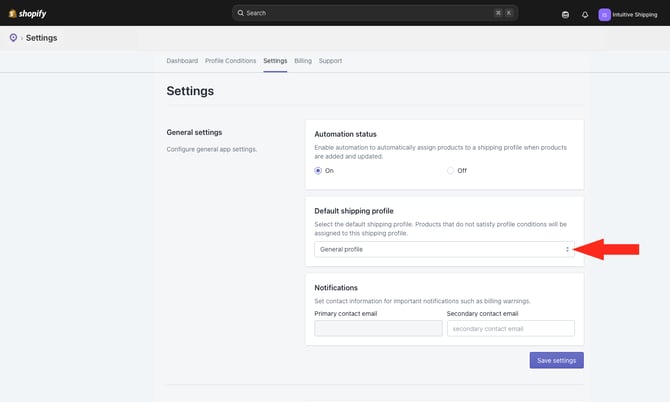
Shipping profiles must be [imported](https://knowledge-asp.intuitiveshipping.com/update-settings#bulk-update-import-shopify-settings) to Automate Shipping Profiles before they appear in the list.
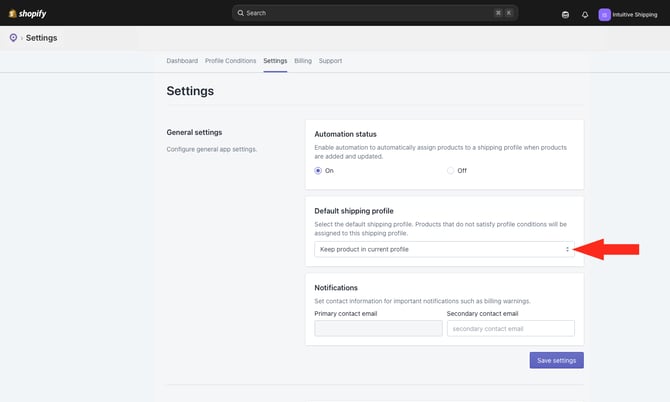
If you don't want products that don't match any Profile Conditions to be assigned to the default shipping profile, you can choose to leave them in their current profile instead.
#### Notifications
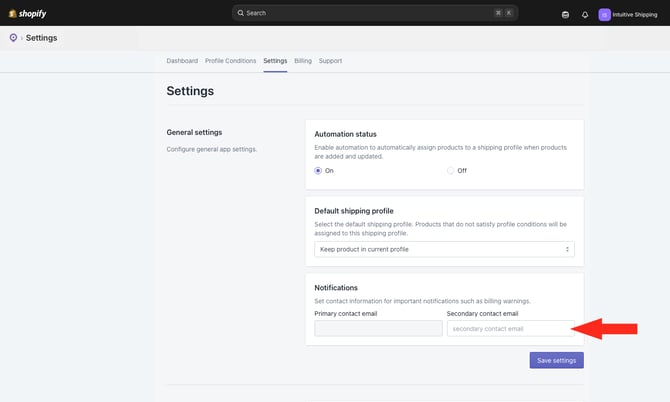
We periodically send important notifications, such as billing and usage reminders, to the **primary email contact** stored in Automate Shipping Profiles. If desired, you can add a **secondary contact email** to receive the same notifications.
Primary contact email addresses are synced with your Shopify account and cannot be changed within Intuitive Shipping.
**1.** Add a **secondary contact email** address.

Learn [how to update your primary contact email address in Shopify](https://knowledge-asp.intuitiveshipping.com/how-to-update-your-primary-contact-email-in-shopify?hsLang=en).
### Bulk Update and Import Shopify Settings
Additional settings are available for **Bulk updates** and **importing your Shopify settings**.
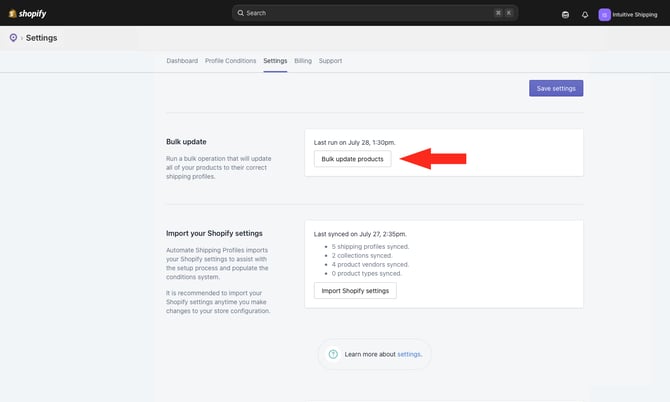
- **Run a Bulk update** any time you add, remove, or edit a Profile Condition to ensure products are sorted according to your latest configuration. Changes to your Profile Conditions won't take effect until a Bulk update is complete.
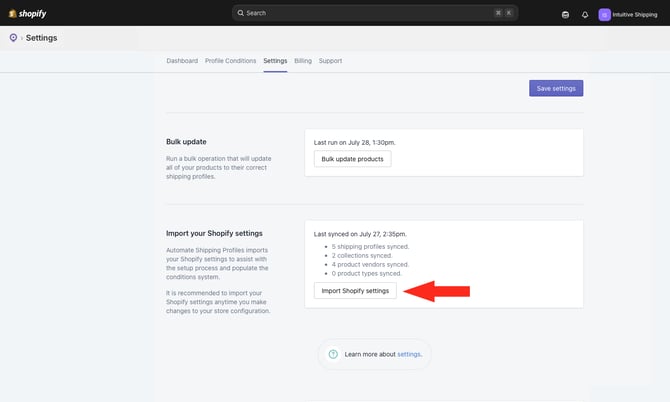
- **Import your Shopify settings** whenever you add, remove, or edit shipping profiles, make significant changes to your product catalog, or update your store information, such as your primary contact email address.
**1.** Click the **Bulk update products** button.
**2.** Click **Import Shopify settings** to sync changes made in your Shopify admin, including product settings (collections, vendors, product types, etc.), shipping profile changes (adding, removing, or editing profiles), and store settings, such as your store name or primary contact email address.
You can continue using Automate Shipping Profiles while the Bulk updates and settings imports are running. However, we recommend waiting until each process is complete before making any changes.
### Learn more:
- [Get Started](https://knowledge-asp.intuitiveshipping.com/get-started?hsLang=en)
- [How-To](https://knowledge-asp.intuitiveshipping.com/how-to?hsLang=en)
- [Billing](https://knowledge-asp.intuitiveshipping.com/billing?hsLang=en)
- [General Info](https://knowledge-asp.intuitiveshipping.com/general-info?hsLang=en)
- [FAQ](https://knowledge-asp.intuitiveshipping.com/frequently-asked-questions?hsLang=en)
- [Get Started](https://knowledge-asp.intuitiveshipping.com/get-started?hsLang=en)
- [How-To](https://knowledge-asp.intuitiveshipping.com/how-to?hsLang=en)
- [Billing](https://knowledge-asp.intuitiveshipping.com/billing?hsLang=en)
- [General Info](https://knowledge-asp.intuitiveshipping.com/general-info?hsLang=en)
- [Get Help](https://knowledge-asp.intuitiveshipping.com/get-help?hsLang=en)
- [Intuitive Shipping](https://intuitiveshipping.com/)
- [FAQ](https://knowledge-asp.intuitiveshipping.com/frequently-asked-questions)
- [Privacy Policy](https://intuitiveshipping.com/legal/privacy)
- [Terms](https://intuitiveshipping.com/legal/terms)
- [EULA](https://intuitiveshipping.com/legal/eula)
[](https://knowledge-asp.intuitiveshipping.com?hsLang=en)
Copyright © 2026, Intuitive Shipping